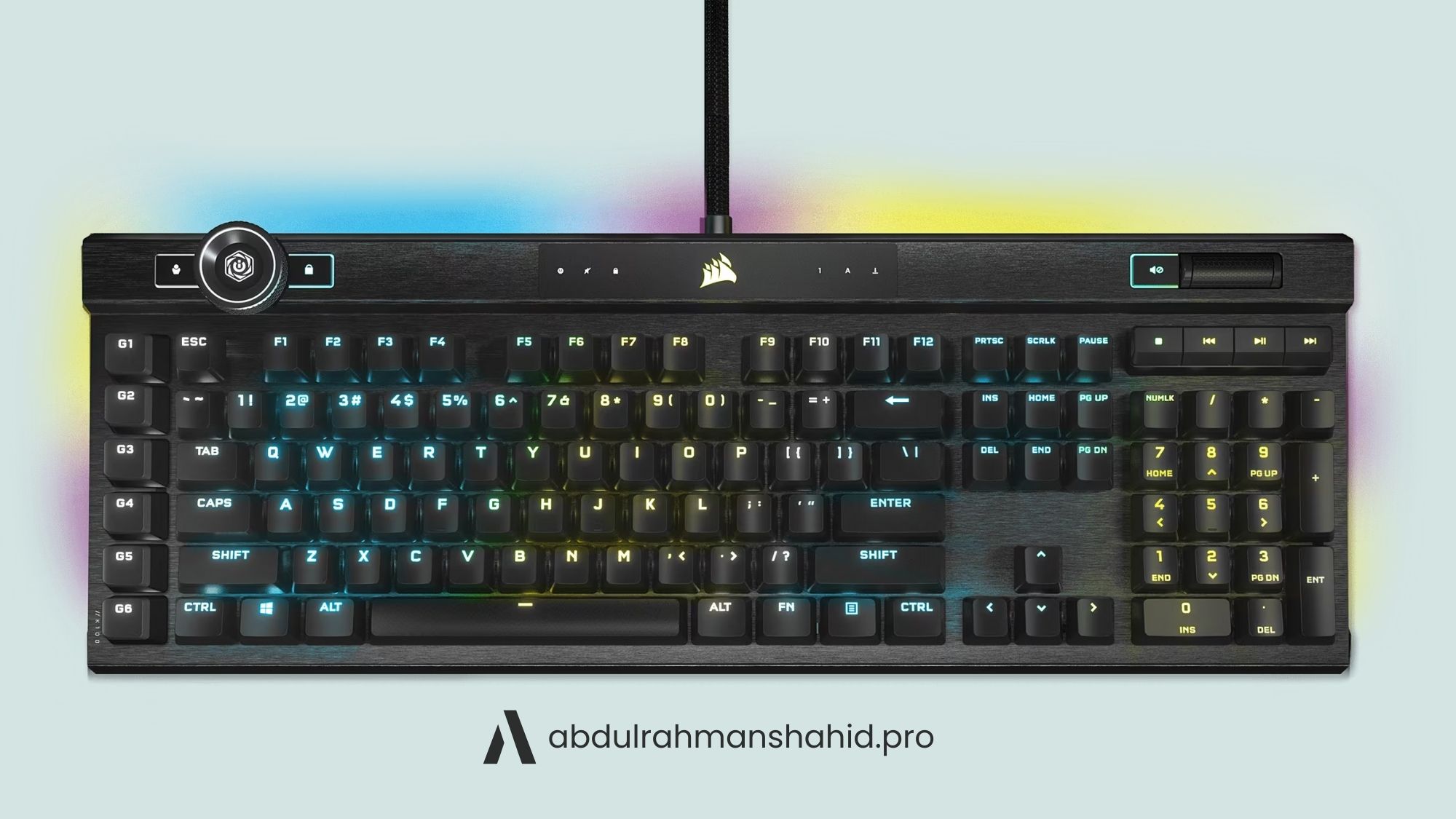
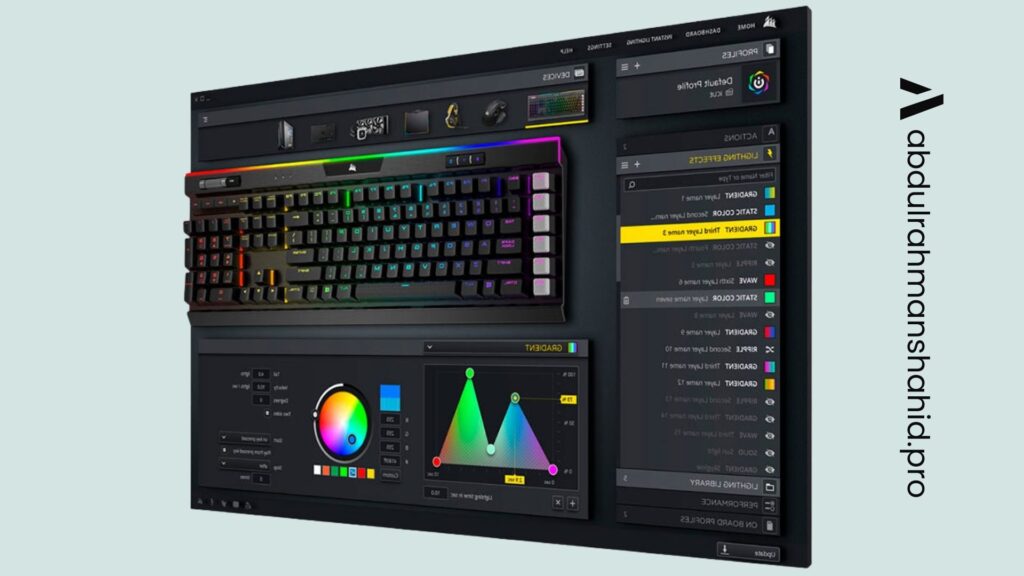
iCUE (short form Corsair Utility Engine) is software built by Corsair for handy customization of Corsair’s products under a single interface. The software allows users to connect all their compatible devices in a single interface.
The software allows users to control RGB lighting, fan speed, monitor temperature, your PC’s performance, and much more. Corsair offers this software for free, and its product users can use it without paying any extra money. Moreover, many of its latest devices come with iCUE factory installed such as the Corsair K100 RGB. So, users can directly jump to the configuration settings and enjoy the features.
Key Features of iCUE
- Provides unlimited virtual customizations of devices.
- Users can synchronize lightning effects on multiple devices.
- It has game integration options
- Can monitor system temperatures.
- RGB lights can be customized to give temperature alerts.
- All your Corsair devices can be commanded through it.
- Its latest version is just 5MB and has a very interactive interface.
- It is also compatible with third-party motherboards.
- You can also adjust your mouse DPI with it.
How to install and use iCUE
Download Guide:
It is a straightforward process to install iCUE on your device and configure it with compatible devices.
- Simply, visit Corsair’s website and search for iCUE software in the search bar.
- It is also present in the main menu, so you can access it from there.
- Click on the link to see a “Download iCUE” button.
- Click on the button
- After downloading, install it on your device and enjoy its features.
How to use Guide:
iCUE has different setup options for different Corsair devices. You can visit Corsair’s help page on its website to configure it for your devices. After setting up iCUE on your device, follow the given steps:
- Open the iCUE application and go to the customization/configuration settings.
- Here you’ll see all the customization options and how to synchronize them on multiple devices.
- You can select the devices you want to customize.
- Now you can customize RGB colors, fan speed, monitor temperature, and many more.
Understanding Profiles — what they are and why they matter
Profiles are pre-built or custom-built templates of settings that provide considerable flexibility. These settings include lighting layouts, DPI levels, macros, key-remaps, and device-specific settings. Profiles let you:
- Maintain separate setups for gaming, streaming, work, and video editing.
- Automatically switch configurations when a specific application runs.
- Export or share a finely tuned setup with another system or user.
Typical profile types:
- Global profile — Applies across all applications and remains active until changed.
- Application-linked profile: This profile automatically activates when the linked program (e.g., a game or editing suite) becomes the foreground application.
- Device-specific profile — Stores settings that apply only to a given device (useful if devices have onboard memory).
Creating a profile guide:
- Open iCUE and click the Profiles section.
- Click + to create a new profile and give it a descriptive name.
- Configure lighting, assign macros/actions, and adjust device settings while the profile is active.
- Optionally link the profile to an application so it activates automatically.
Always export important profiles to a backup file — that protects you if you reinstall the OS or move to another machine.
iCUE Wheel
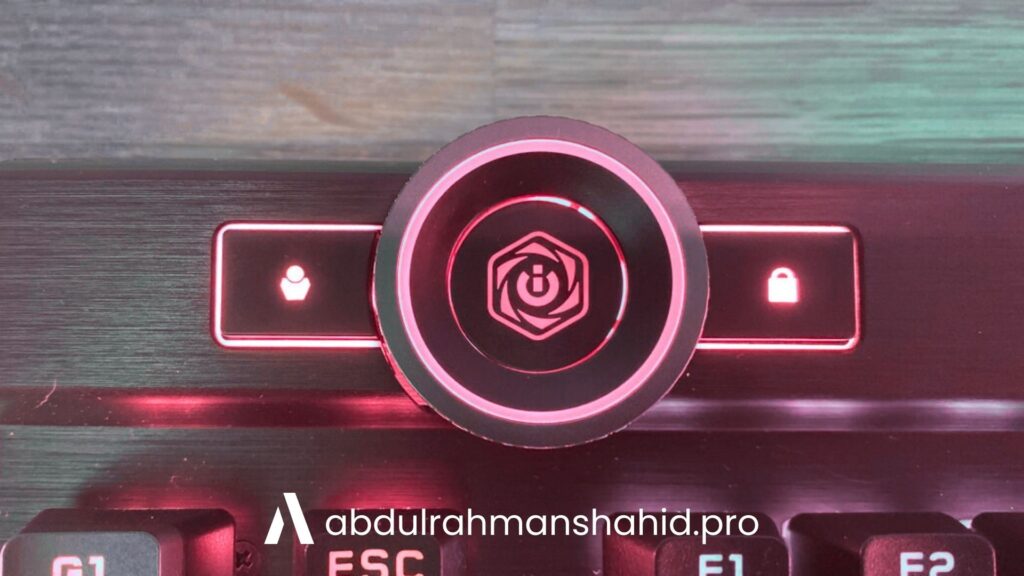
iCUE is mainly used on laptops, mice, headphones, and other primary devices used in gaming. Corsair’s latest keyboards come with a button-like wheel it also known as the “iCUE Wheel” or “iCUE control wheel”. This wheel is integrated with iCUE software and comes with built-in customization options.
Users can configure the iCUE wheel’s settings through their iCUE interface. It allows the setup of different functions with the correspondence of different colors. For example, when you rotate the wheel, it will shift to different colors, and each color will allow you to perform custom functions that are integrated with that color. You can change the function of each color and can add more colors for more operations.
FAQs
Q: Do all Corsair devices come with an iCUE control wheel?
No, now all Corsair devices come with an iCUE wheel. Only a few of its keyboards have it and the rest of the devices can be configured directly through the iCUE interface.
Q: What can users do with iCUE?
Users can use iCUE to customize their compatible devices. They can control RGB lighting, and the speed of fans, monitor system temperature, and can also synchronize multiple devices.
Q: Is iCUE compatible with third-party motherboards?
Yes, Corsair has made partnerships with a lot of leading companies and product manufacturers around the globe, such as ROG, Nvidia, etc. iCUE is compatible with devices of all these companies.
Q: Can iCUE control CPU fan speed?
Yes, iCUE is capable of controlling compatible devices’ fan speeds. Users can change the speed of the fans and also customize their colors.
Q: How do you add a device to iCUE?
It is quite easy to connect a device with iCUE if it is compatible and supports the software. For instance, almost every Corsair device is compatible with iCUE software. Many other companies are now partnering with Corsair to get iCUE compatible with their products, too.